Getting started
Record or import a session
Choose how to bring your sailing into Vantage. Once it is processed, open the activity to replay and analyze it.
iOS, Android and web · Core features
Where to start
Create → Upload File or Record on Device. Garmin: Profile → Connected Services.
Upload a file
- Select Upload File and choose the recording from your device.
- Enter the activity name, boat, wind strength and activity type. Coaches select the sailor first so the correct boats appear.
- Submit the upload and wait for processing. Open the activity and check the track, times and boat before starting the analysis.
Supported sources include GPX, FIT, TCX, Vakaros VKX and compatible session CSV exports. With Pro or Coach, attach video through the activity’s video tools after the activity has been created. Video uploads are not available on Starter.
Record on your phone
- In the iOS or Android app, choose Record on Device. Check location access and GPS status.
- If you need heel and pitch, secure the phone to the boat. In recording settings, open Mount & Calibration → Run Setup and follow the mounting prompts.
- For a mounted phone, keep the boat upright and use Zero Calibration to set the neutral position. Skip mounting and calibration when recording from a pocket.
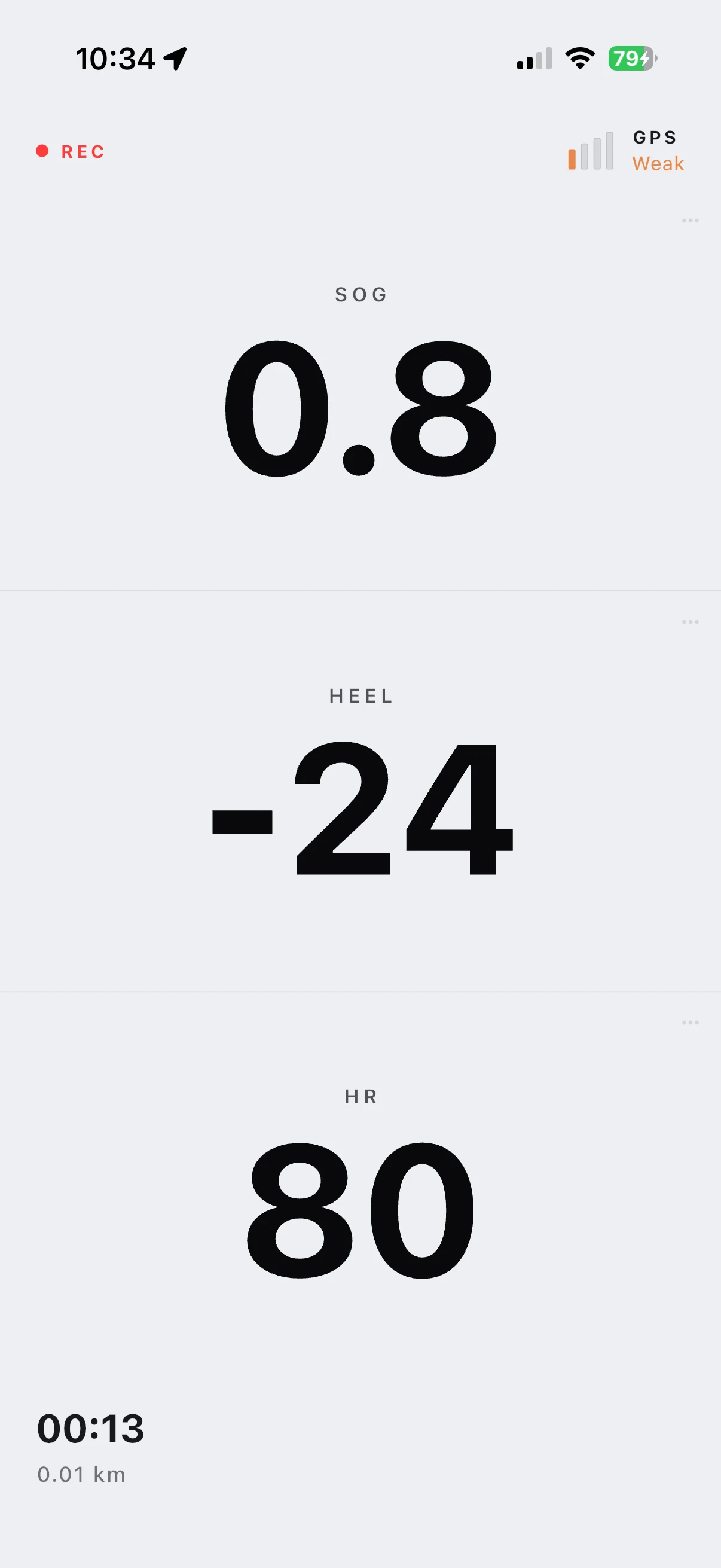
- Choose the display layout and measurements, then start recording. Check that live data is arriving.
- If needed, enable Screen lock (wet mode) to prevent accidental touches. Hold to unlock when you need the controls.
- When finished, pause the recording and choose the end action. Complete the activity details and upload it, or keep the local recording for later.
You can record with your phone in a pocket; mounting it is optional. GPS-based measurements such as your track, speed and course still work, but a phone moving with your body cannot measure the boat’s heel and pitch accurately.
A local recording becomes an analyzed activity after upload and processing. You can return to Saved recordings to upload it later.
Garmin automatic uploads
- Open Profile → Connected Services → Garmin Connect and choose the destination boat.
- Connect your Garmin account and complete authorization. Check that Vantage shows Connected.
- Record and sync a suitable sailing activity to Garmin Connect, then check All Activities in Vantage. Use file upload for an older session; connecting does not import your entire history.
Changing Destination boat affects future imports. Disconnecting retains activities already imported.
Saved recordings and failed uploads
Open Record on Device → Saved recordings to return to an unuploaded session or download its CSV. Local recordings stay on the device that captured them.
If an upload result is unclear, check All Activities before using Upload again to avoid duplicates. Keep the original until the uploaded activity is available.
Heart rate and other sensors
For live heart rate, open recording settings → External Sensors → Heart Rate, select the monitor and check its connection.
Measurements already included in a supported device file are imported with it. For a separate timestamped sensor log, use Settings → Upload External Data on the processed activity; see Edit activity details.